
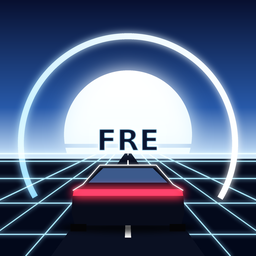
NightCluster
A live car dashboard for iPad.
Coming soon to the App Store
NightCluster turns an iPad into a live car dashboard, with a companion iPhone app, NightCluster Eye.
What it does
NightCluster turns an iPad into a live car dashboard: OBD-II engine data from a Bluetooth adapter, a 3D car view, a map with speed limits and stop, traffic-light, railroad and Flock camera alerts (informational; may be missing or wrong), dashcam and Sentry modes, music controls, weather, and selectable themes.
- OBD-II engine data from a Bluetooth adapter
- A 3D car view
- A map with speed limits and stop, traffic-light, railroad, and Flock camera alerts (informational; may be missing or wrong)
- Dashcam and Sentry modes
- Music controls
- Weather
- Selectable themes
NightCluster Eye
NightCluster Eye is the companion iPhone app, meant for a dash-mounted iPhone. Its main job is to share the phone’s GPS with a Wi-Fi-only iPad so NightCluster can show location, speed, and maps without a cellular iPad.
Link
On the Link tab, choose GPS only or GPS + Road Vision. The tab shows whether the iPhone and iPad are connected. The iPad talks to the OBD adapter and relays the car data to the phone, so you do not set up an adapter on the iPhone.
The Link tab also has a Help card with a “Help & setup guide” link back to this page and the recommended OBD adapter, the Vgate iCar Pro BLE, which pairs to the iPad. See Recommended OBD adapter.
Road Vision
Road Vision is optional and off by default. When you turn it on, the iPhone camera looks for cars, people, traffic lights, and stop signs, and can show alerts such as “Keep distance” and “BRAKE, vehicle ahead.” All of this runs on the phone. NightCluster Eye is not a safety, collision-warning, or driver-assistance system. Detections and alerts may be missing, delayed, or wrong. Never use it while driving; set it up while parked, or let a passenger use it, and always follow the actual road, posted signs, and the law.
3D, Speed, and Music
A 3D tab shows the same Mazda car as the iPad, including headlights and brake lights. A Speed tab shows a gauge cluster. A Music tab lets you browse your library, control playback, and change the volume.
Setup
Install both apps, open Link on the iPhone, and pick a mode.
Recommended OBD adapter
The Vgate iCar Pro OBD-II adapter (Bluetooth LE) is the one the developer runs in his own 2014 Acura ILX. When you scan for it in NightCluster, it shows up as “IOS-Vlink.”
Disclosure: this link goes to an eBay listing by Raul Fregoso, NightCluster’s developer, who may earn from the sale.
NightCluster isn’t affiliated with Vgate or any adapter maker.
Platforms
NightCluster is an iPad app. NightCluster Eye is the companion iPhone app. Both are coming soon to the App Store.
Help
Developer mode and the secret FRE theme are in the iPad app, NightCluster, only. They are not in the iPhone app, NightCluster Eye. A TomTom key can be added on either device.
Turning on Developer mode
There are two ways to turn on Developer mode.
Direct: open Settings (the gear icon), tap the Developer card, and switch on Developer options.
Hidden: go to Settings > About & Data Sources > About & credits, then tap the version number seven times. After the fourth tap a countdown appears, and at seven you see “Developer options enabled.”
Once it is on, Settings > Developer > Diagnostics shows debug readouts for GPS, speed limits, stop signs and lights, gear estimate, and the OBD log. While the car is moving, Diagnostics asks you to confirm you are a passenger. Never use Developer options or Diagnostics while driving.
Unlocking the secret FRE theme
Go to Settings > About & Data Sources and tap the NightCluster app icon at the top seven times quickly. Taps more than 1.5 seconds apart restart the count. The icon spins with a glow ring, and the screen shows “Secret theme unlocked: FRE.” Tap Use FRE to switch right away. FRE then also appears as the last tile in the theme grid under Settings > Display. The unlock stays on.
Adding a free TomTom key
This step is optional. It can improve speed limits. NightCluster and NightCluster Eye use OpenStreetMap speed limits by default; with a TomTom key, they ask TomTom only on roads where OpenStreetMap has no posted limit.
To get a key, register a free account at developer.tomtom.com. No credit card is required. Sign in, open the Dashboard’s API & SDK Keys section, and copy a key. TomTom typically creates one for you, called “My first API key.” The free tier includes a monthly request allowance that varies by API.
On NightCluster (iPad): turn on Developer mode, then open Settings > Developer > Diagnostics. Under “Speed limit source,” paste the key into “TomTom API key (optional, free tier).” Spaces are stripped automatically. Under “TomTom test,” tap Test key; a green OK means it works. “TomTom live status” then shows the last lookup and the lookups today. To turn TomTom off, clear the field.
When a key is set, TomTom receives your approximate location with each lookup. NightCluster is not affiliated with TomTom.
On NightCluster Eye (iPhone)
Open Eye, go to the Link tab, and scroll to the About card. Tap Version seven times quickly. Taps more than 1.5 seconds apart reset the count, and from the fourth tap a hint counts down. A Developer card appears at the bottom with a “TomTom API key (optional, free tier)” field and a Test key button, which shows a green OK with a mph reading or an error such as invalid key or quota exceeded. The unlock is remembered. “Hide developer options” turns the card off.
The key must be entered on each device separately and does not sync between iPad and iPhone. Eye uses TomTom only when OpenStreetMap has no posted limit, same as the iPad, and the sign then shows source “TT.”
Safety first
NightCluster and NightCluster Eye are not for use by the driver while driving. Set them up while parked, or let a passenger use them. Neither app is a safety, collision-warning, or driver-assistance system.
- Speed limits, sign and light detection, camera and railroad alerts, maps, and OBD-II vehicle readings may be missing, delayed, or wrong.
- Always follow the actual road, posted signs, and the law.
- Mount devices only where the law allows, never where they block your view or an airbag.
Recording laws are your responsibility. Dashcam and Sentry recording laws vary by location, and some places require everyone’s consent before audio is recorded.
- Audio recording is off by default.
- Sentry records while the vehicle is parked and may capture people nearby.
- Recordings stay on your device and are not uploaded to any server, but they may be included in your device backups. They leave the device only if you save them to Photos or share them.
Provided “as is” under the in-app terms, which limit our liability and require you to indemnify the publisher. See the Terms of Use.
iPad: com.raulfregoso.retrodash. iPhone companion: com.raulfregoso.retrodash.eye.